
Microsoft 365 has become the digital workplace for millions of small businesses. Emails, documents, customer information, meetings, and daily communication are often managed in a single platform. This makes Microsoft 365 incredibly convenient—but it also makes it one of the most attractive targets for cybercriminals.
Many business owners believe that subscribing to Microsoft 365 automatically provides complete protection. In reality, Microsoft offers a powerful set of security features, but several of the most important settings still need to be enabled and configured correctly. Leaving these features untouched can create opportunities for attackers to steal accounts, spread malware, or gain access to sensitive business data.
The good news is that improving your Microsoft 365 security does not have to be complicated or expensive. By enabling a handful of essential security settings, small businesses can significantly reduce their risk of phishing attacks, account compromise, and data breaches. In this article, we will look at five Microsoft 365 security settings that every small business should enable to build a stronger security foundation.
1. Multi-Factor Authentication for Every Single User
If there’s one setting that separates businesses that get breached from businesses that don’t, it’s this one. A password alone is not a credential anymore; it’s a piece of information that has probably already leaked somewhere, whether through a data breach at another service, a phishing email, or malware on someone’s home computer. Multi-factor authentication means that even when an attacker has a valid password in hand, they still can’t get in without also having the user’s phone or authenticator app.
The mistake most small businesses make isn’t skipping MFA entirely — it’s enabling it only for a handful of “important” accounts, like the owner or the finance manager, while leaving everyone else on password-only access. Attackers don’t care about your org chart. They’ll happily compromise the account of a part-time intern if it gets them a foothold inside your tenant, from which they can move laterally, read internal email, or launch further attacks that look like they’re coming from a trusted colleague. MFA needs to apply to every user, every time, with no exceptions carved out for convenience.
The practical lesson here: enable Security Defaults or, better, a proper Conditional Access policy that enforces MFA tenant-wide, and treat any request to exempt an account from it as a red flag rather than a favor.
2. Conditional Access Policies That Block Legacy Authentication
Multi-factor authentication only works if attackers can’t simply route around it, and legacy authentication protocols are exactly the kind of back door that makes that possible. Older protocols like POP3, IMAP, and SMTP AUTH were built before MFA existed as a concept, which means they often don’t support it at all. If these protocols are still active on your tenant, an attacker with a stolen password can potentially authenticate through them and skip the MFA prompt entirely.
Most small businesses have no idea legacy authentication is even enabled, because it usually isn’t something anyone actively turned on — it’s simply never been turned off. Some older mail clients and line-of-business applications rely on it, which is exactly why it tends to linger. The fix is a Conditional Access policy that blocks legacy authentication protocols outright, paired with a quick internal check of which applications actually need older connection methods so you’re not breaking anything business-critical in the process.
The lesson for owners: security settings aren’t just about what you add, they’re also about what you close. A single overlooked legacy protocol can quietly undo the protection you just built with MFA.
3. Anti-Phishing and Safe Links Protection Through Defender for Office 365
Email is still the most common way attackers get into small businesses, and it isn’t close. A well-crafted phishing email that mimics an invoice, a shipping notification, or a message from “IT support” doesn’t need to break through any technical defense — it just needs one employee, on one busy afternoon, to click without thinking. Microsoft 365’s built-in anti-phishing and Safe Links features are designed to catch exactly this kind of attack before it reaches an inbox or before a malicious link can do damage, but they need to be properly configured rather than left on their default, relatively permissive settings.
Safe Links rewrites URLs in incoming email so that when someone clicks, the destination is checked in real time — which matters because attackers increasingly register a domain that looks legitimate at the moment an email is sent, then swap in malicious content afterward. Anti-phishing policies, meanwhile, look at signals like display name spoofing and domain impersonation to catch messages that are pretending to come from your own CEO or a trusted vendor. For a small business, tightening these policies and applying them to every user is one of the highest-return changes available, because it protects the exact moment where most attacks actually succeed: a distracted employee and a convincing email.
4. Audit Logging and Mailbox Alerts Turned On From Day One
Here’s a scenario that plays out constantly: a small business discovers weeks or months after the fact that an employee’s mailbox was compromised, because a client mentions receiving a strange invoice, or a vendor calls asking why payment details suddenly changed. By that point, the attacker may have read months of correspondence, set up hidden forwarding rules, and gathered enough detail to run a convincing follow-on scam. None of this had to stay invisible for that long — it stayed invisible because audit logging and alerting weren’t switched on.
Unified audit logging in Microsoft 365 records sign-ins, mailbox rule changes, forwarding rule creation, and file access across the tenant, but it has to be enabled, and by default the retention window is often shorter than businesses expect. Alert policies can be configured to flag specific red flags immediately — a new forwarding rule that sends copies of email to an external address, a sign-in from an unusual country, or mailbox permissions being changed — so that someone gets notified in near real time rather than discovering the problem from a confused phone call weeks later.
The takeaway for small business owners: detection matters just as much as prevention. No set of defenses is perfect, and the businesses that recover quickly from a compromise are almost always the ones that noticed it within hours, not months.
5. Data Loss Prevention Policies for Sensitive Information
The final setting addresses a risk that has nothing to do with external attackers and everything to do with ordinary, well-meaning employees. Data Loss Prevention, or DLP, policies scan outgoing email and shared files for patterns that indicate sensitive information — credit card numbers, tax identification numbers, health record identifiers — and can block, warn, or require encryption before that information leaves the organization. Without it, a well-intentioned employee forwarding a spreadsheet to the wrong recipient, or attaching the wrong file to a routine email, becomes a data breach that no firewall or antivirus tool would ever have caught.
Small businesses often assume DLP is an enterprise-only concern, relevant only to companies handling large volumes of regulated data. In practice, almost every small business handles something worth protecting — customer payment details, employee social security numbers for payroll, health information from insurance paperwork — and a single misdirected email containing that data can trigger the same regulatory and reputational consequences a larger company would face. Microsoft 365’s built-in DLP templates for financial and health information are a reasonable starting point and can be configured in an afternoon.
The broader lesson here is one that applies to all five of these settings: the biggest risk to a small business’s data usually isn’t a sophisticated hacker breaking through advanced defenses. It’s an unconfigured default, sitting quietly in a system the business already owns and already pays for.
Conclusion: how to secure Microsoft 365 for small business
Cybercriminals are constantly looking for easy targets, and small businesses are no exception. Since Microsoft 365 often stores a company’s emails, files, customer information, and daily communications, protecting it should be a priority for every business owner.
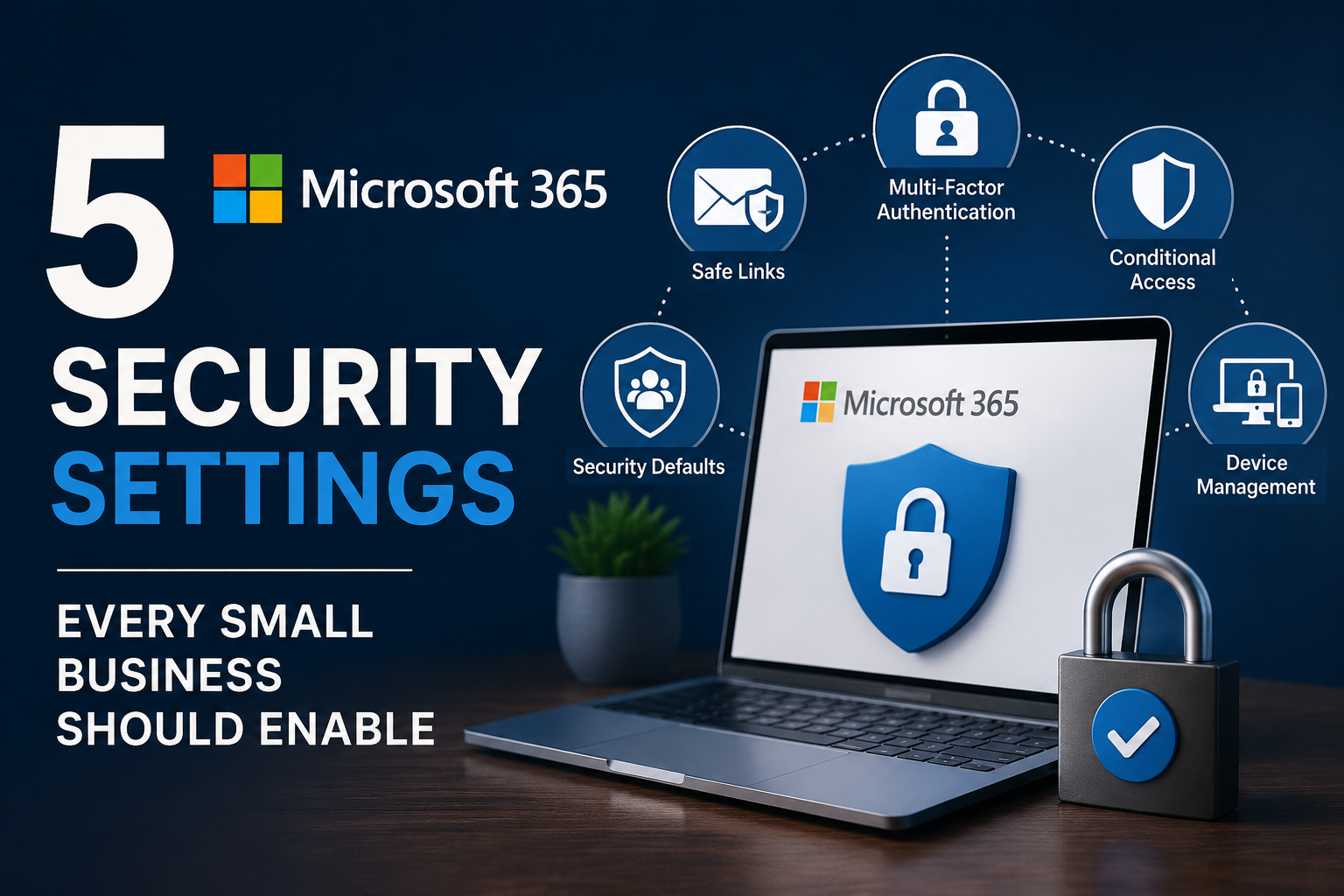
The good news is that improving your security does not always require expensive software or a dedicated IT security team. Many of the most effective protections are already included in Microsoft 365—they simply need to be enabled and configured correctly. Features such as Multi-Factor Authentication, Conditional Access, Safe Links, Security Defaults, and proper device management can significantly reduce the risk of phishing attacks, compromised accounts, and unauthorized access.
Security is not something you configure once and then forget. As your business grows, employees join or leave, and new cyber threats emerge, it is important to review your Microsoft 365 security settings on a regular basis. Even a short security review every few months can help identify weaknesses before attackers do.
By taking the time to enable these five essential security settings, you are building a stronger foundation for your business. No security solution can eliminate every risk, but a properly configured Microsoft 365 environment makes it far more difficult for cybercriminals to succeed. A few hours spent improving your security today can prevent days, weeks, or even months of disruption in the future.
I also recommend you to read the following articels
Backup Strategies with OneDrive: What Happens If Something Is Deleted?