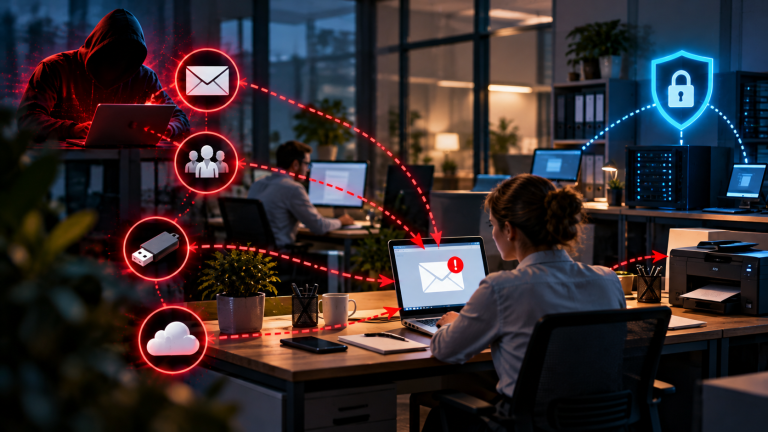

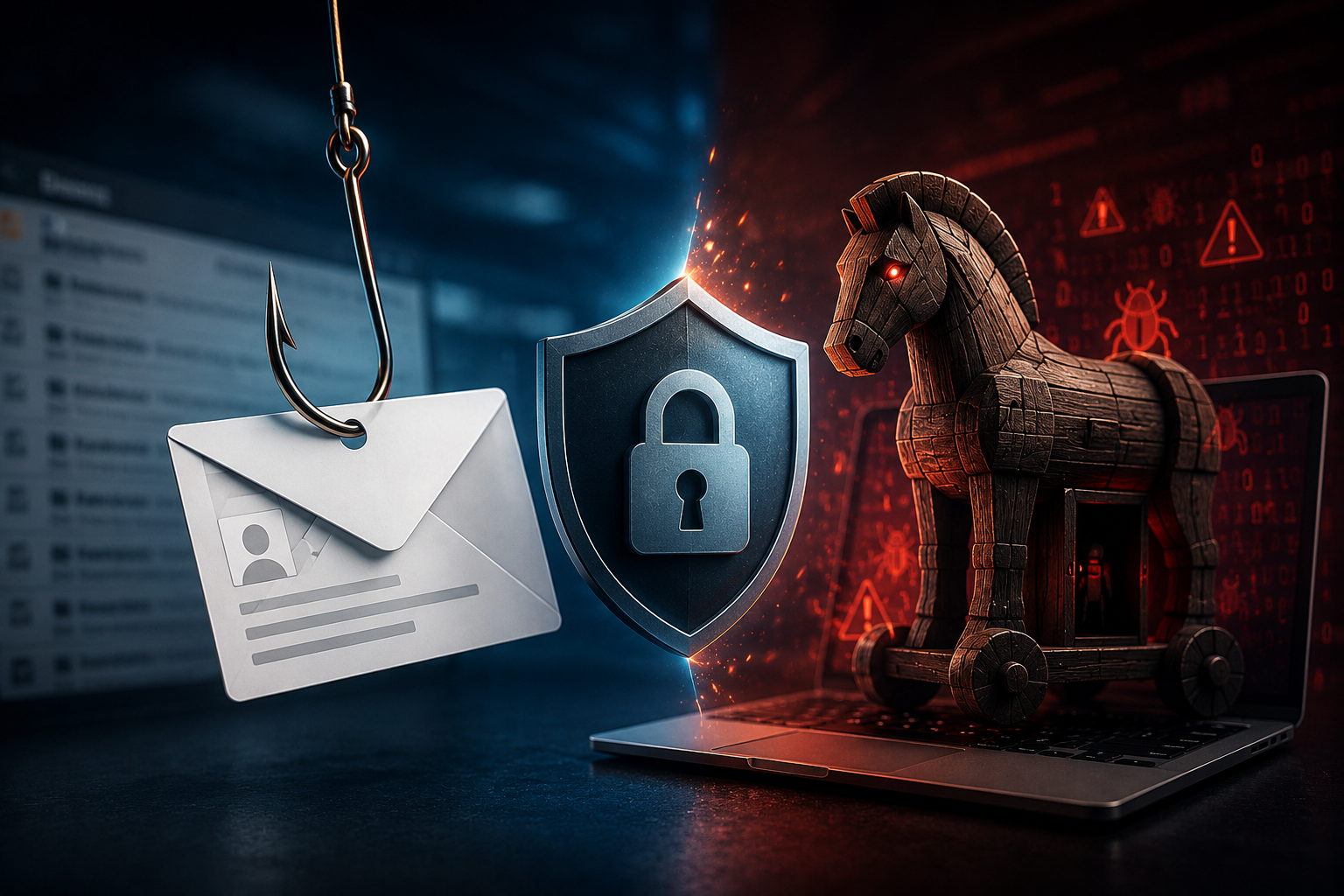
One careless click – and it’s already too late. Phishing, Trojans, fake emails: you’ve probably heard these terms before. What most people don’t realize is just how sophisticated these attacks have become. Cybercriminals now mimic messages from banks, parcel services, or online shops with startling precision—often nearly indistinguishable from the real thing. Their goal: your personal data, your online banking, or complete control over your system. Here’s the insidious part: often a single careless click is enough to give attackers access. The consequences range from emptied accounts to identity theft—a nightmare that causes enormous stress and hassle.
The good news is that with a little attention and knowledge of the key warning signs, you can protect yourself effectively. In this article, you’ll learn how to spot phishing attempts and Trojans in time, which telltale characteristics keep showing up, and what simple steps you can take right away. In short: after reading this article, you’ll be able to confidently assess suspicious emails or files and make the right call when in doubt.
1. Check the sender address
Phishing emails often look deceptively authentic at first glance: the logo, colors, even the signature appear professional. But the crucial clue is often hidden in the sender’s address. While reputable companies use clear and traceable addresses—such as support@paypal.com or service@deutsche-bank.de—fraudsters resort to a range of tricks. They use similar-looking domains, such as support@paypall-security.net (with a double “l”) or kundenservice@deutsche-b4nk.com. They replace letters with similar-looking characters, so a lowercase “l” can quickly look like an “i,” and the “o” is replaced by a zero. Sometimes they even use freely available email addresses from services like Gmail or Outlook, such as paypal-customerservice@gmail.com—which, of course, would never be official.
So how do you protect yourself in practice? Click on the sender’s name in your email program to view the full address; often, only then can you tell if something is wrong. If you’re unsure, enter the domain (for example, “paypall-security.net”) into a search engine—you’ll usually find immediate indications that it’s a scam site. And never trust the displayed name alone, such as “PayPal Support” or “Sparkasse Customer Service,” since these can be faked in seconds.
This initial check is extremely important because it’s often the only detail that reveals a fake email. Getting into the habit of quickly checking the address of every email drastically reduces your risk.
2. Grammatical and spelling errors
A very common warning sign for phishing emails and fake messages is linguistic inconsistency. Official companies invest in professional communication—their emails are usually correctly worded, well-structured, and free of major errors. Cybercriminals, on the other hand, often rely on automated translations or simply have no interest in linguistic accuracy.
This shows up in a few typical ways. Sentences are often phrased unnaturally, with wording like “Please confirm your data” or “Your account will be blocked” sounding stilted rather than conversational. The salutation is another giveaway: instead of a personal greeting like “Dear Ms. Müller,” you often only read a generic “Dear Customer” or “Hello User.” Spelling mistakes creep in too, with words misspelled or broken up by unnecessary spaces, such as “PayPal” or “On lineBanking.” And sometimes the whole tone feels off—unprofessionally short or oddly familiar, like “Dear friend, please help me quickly!”—which simply isn’t how a bank or insurance company communicates.
So how do you catch these red flags faster? Read suspicious messages deliberately slowly, since mistakes often only become apparent on closer inspection. Ask yourself whether your bank or online shop would really write like this—reputable companies value their public image and would never send emails full of errors. And try the “language test”: if the email sounds like it came from a bad translation program, you can be almost certain that something is wrong.
There are exceptions, however: some phishing emails are now almost linguistically perfect. So you should never use spelling and grammar as the sole criterion—but they remain a valuable clue that should immediately make you suspicious.
3. Urgency & scaremongering
One of cybercriminals’ most effective tools is fear. Many phishing emails use time pressure or threaten consequences to force you to react quickly and rashly. This psychological tactic works frighteningly well—because under stress, we often act impulsively.
Typical examples include messages like “Your account will be closed in 24 hours if you do not respond!”, “Final warning: We have detected suspicious activity. Take immediate action!”, or “Today only: Confirm your details to continue using the service.” Such wording is deliberately designed to make you fear losing something important—be it access to your bank account, your Amazon orders, or even your own identity.
How can you tell real news from fake? Reputable companies rarely set deadlines of just a few hours. If there’s a genuine problem, you’ll usually receive multiple notifications through various channels—by mail, app notification, or phone. Drastic consequences, such as an account being deleted immediately, are almost always fake, since banks or payment services give you time to resolve your concerns. And emotionally charged language like “Last chance!” or “Act immediately!” simply has no place in professional business communication.
In practice, this means taking a deep breath and never clicking on links or buttons in the heat of the moment. If you’re unsure, open your provider’s website manually in your browser—for example, www.paypal.com—and you’ll immediately see whether there really is a warning or message waiting for you. If in doubt, call customer service directly; that way, you avoid the trap altogether.
Remember: urgency is one of the strongest warning signs. Those who pressure you usually want one thing—to stop you thinking and get you to click the link blindly.
4. Suspicious links
Phishing emails almost always contain links or buttons that lead to fake websites. These pages are often designed to look deceptively real, imitating well-known companies like PayPal, Amazon, or your bank, and then ask you to enter sensitive information such as your login details or credit card number. The trick lies in how the link is displayed: the text looks harmless, but behind it lies a completely different address.
You’ll see this play out in a few typical ways. The email text might say www.paypal.com, but hovering over it with your mouse reveals something like http://pay-pal.verify-account.cn instead. A button labeled “Log in now” might redirect you to a completely unknown domain such as login.secure-portal.info. And some links look legitimate at first glance but contain tiny variations, like www.sparkassse.de with three “s”s instead of two.
So how do you spot a suspicious link before it’s too late? Use the hover effect: hover your mouse over the link without clicking, and you’ll see the actual destination address at the bottom of your browser. Pay attention to HTTPS, since reputable sites always begin with https://—if the “s” is missing, that’s an immediate red flag. Check the domain carefully, because the part directly before the ending (.de, .com, .net) is what actually matters; a page like amazon.kundenservice.support.de doesn’t belong to Amazon at all, but to “support.de.” And be wary of cryptic characters, since long URLs full of numbers, special characters, or strange additions are often a sign that something is off.
A few habits go a long way here: always enter important addresses manually into your browser instead of following links in emails, use browser plugins or security software that automatically block dangerous websites, and if you’re unsure, copy the URL without clicking it and search for it—you’ll often find warnings from other users right away. Remember: links are the number one entry point for phishing. Always check them twice before clicking.
5. File attachments with caution
A particularly popular way for attackers to spread malware such as Trojans or ransomware is through file attachments in emails. Even a careless double-click can cause malware to install itself unnoticed on your computer—often with serious consequences.
The traps come in several familiar forms. ZIP archives often contain alleged invoices or delivery notes that actually hide an executable file (.exe). Office documents like Word, Excel, or PowerPoint files become dangerous once macros are enabled, with attackers disguising malicious code as a “document” that supposedly contains a confirmation or reminder. PDF files are usually safer but can still be compromised and redirect you to malicious links. And attachments with double extensions, such as “Invoice.pdf.exe,” look like a harmless PDF at first glance but are, in reality, an executable program.
Protecting yourself starts with never opening attachments without thinking—if you weren’t expecting a file, you should be especially cautious, no matter how genuine the email appears. It also helps to check the sender critically, since even an email that appears to come from a known contact could mean their account has been hacked; if in doubt, ask them directly. Displaying full file extensions in your operating system is another useful step, since it lets you immediately spot duplicate extensions or incorrect file types. And a good virus scanner helps too, as many modern security programs automatically check attachments before you open them.
Here’s how this plays out in practice: you receive an email with the subject “Final Reminder – Outstanding Invoice” from an unknown sender, and the attachment contains a file called “Invoice.zip.” Your natural instinct would be to open it—but that’s exactly where the trap lies. In 9 out of 10 cases, it’s not a document at all, but malware.
Remember: only open attachments you expected and whose origin you clearly know. Everything else belongs immediately in the trash.
6. Unusual behavior on the PC
Some Trojans and malware sneak in despite all precautions. They’re often programmed to run as inconspicuously as possible in the background. But they rarely remain completely invisible—certain signs can indicate that something suspicious has taken root on your system.
These warning signs tend to follow familiar patterns. Your computer or smartphone might suddenly respond unusually sluggishly, even though you don’t have any large programs open. Unknown programs or processes may appear in Task Manager on Windows or Activity Monitor on Mac—applications you simply don’t recognize. Programs might start crashing more frequently, or strange error messages appear that don’t quite make sense. Your internet connection could feel noticeably slow, or you notice traffic even when you’re not downloading anything. Settings might change without your doing anything, such as your browser’s homepage suddenly being different, or unknown toolbars and new apps showing up that you never installed. And in some cases, your antivirus software gets disabled entirely, since certain Trojans specifically try to block or shut down security programs.
If you suspect something is wrong, act in a clear sequence. Start with a full system scan using your antivirus or antimalware software. Then check your installed programs and remove anything unknown or suspicious. If you believe sensitive data is at risk, disconnect your device from the internet for the time being. Make sure your operating system and software are fully updated, since many Trojans exploit known security vulnerabilities. And in the worst case, the only real solution is to reinstall the system and restore your data from a clean backup.
It also helps to build a habit of performing simple checks regularly—looking at your startup programs or the list of active processes now and then—so you notice changes more quickly. Remember: if your computer suddenly behaves differently, there’s usually more to it than just coincidence.
7. Use official channels
If you’re unsure whether an email, text message, or other message is genuine, there’s a simple but very effective step: contact the official source directly. Scammers want you to respond via their fake links or phone numbers—this is exactly what you should avoid.
Doing this correctly comes down to a few habits. Only access websites manually, typing your provider’s address directly into your browser’s address bar—such as www.paypal.com or www.sparkasse.de—rather than following links in emails. Use the official app where possible, since many banks and payment services offer secure apps that let you see immediately whether there’s actually a message or warning waiting for you. If you want to call, only use the phone number from the official website, your bank card, or your contract documents—never the number listed in a suspicious email. And you can always check your customer account directly by logging in; if there really is a problem, you’ll find a message there.
Here’s how this plays out in practice: you receive an email, supposedly from your bank, saying “Please click here to unlock your account.” Instead of using the link, you go directly to your bank’s official website or call the familiar hotline. In 99% of cases, it turns out there was never a problem at all—the email was a phishing attempt.
One extra tip worth knowing: many companies run their own phishing reporting centers, where you can simply forward suspicious emails, for example to spoof@paypal.com. This not only protects you but also helps other customers avoid the same trap. Remember: never rely on information from a suspicious message—always seek confirmation through official channels.
Conclusion: How to recognize phishing emails and Trojans – the most important warning signs
At their core, most phishing and Trojan attacks rely on a single factor: inattention. Scammers count on you clicking quickly in the middle of a busy day, without looking closely. That’s exactly why it’s worth taking a few extra seconds whenever a message feels even slightly off.
By now, you know what to look for: check sender addresses carefully, pay attention to spelling and phrasing, don’t let yourself be pressured by urgency, and never open an attachment you weren’t expecting. Links deserve special caution of their own—a quick glance at the actual destination address, rather than the displayed text, can save you from serious damage. It’s equally worth staying alert to your computer’s behavior; when something suddenly stops working as usual, that’s often an early warning sign that malware has crept in. And whenever doubt creeps in, checking directly with the official provider will always serve you better than clicking a link and hoping for the best.
None of this requires special technical expertise—just a moment of attention at the right time. In the end, your best defense is simply common sense.
I also recommend reading the following articles
How a Single Email Attachment Took Down a WordPress Website
How to Identify Phishing Emails in 2026 – A Practical Step-by-Step Guide
Phishing 2026: How Attackers Are Becoming Increasingly Professional