
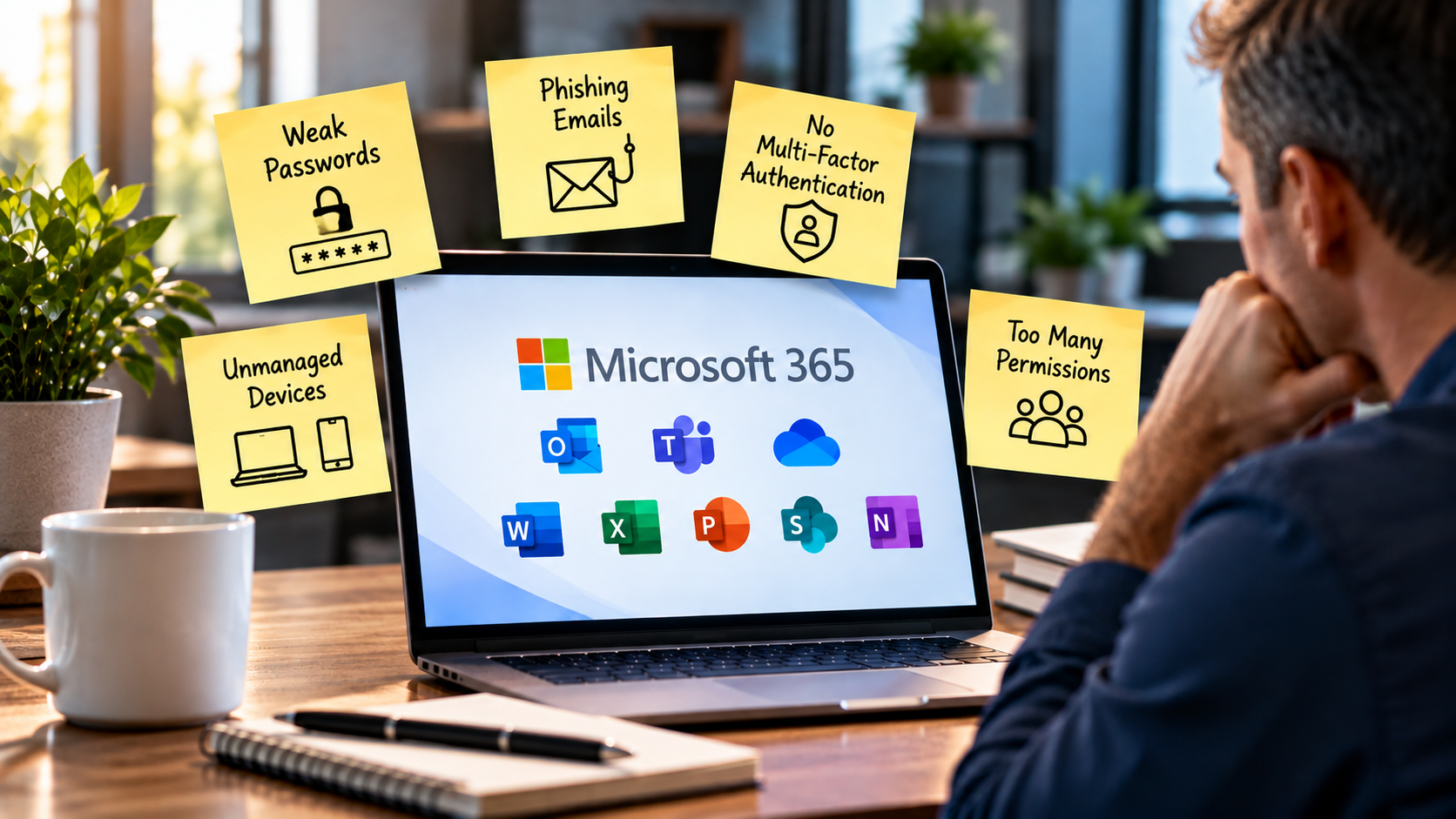
Microsoft 365 makes everyday work easier. You can manage emails, share files, hold meetings, and work with your team in one place. But there is one thing many small businesses overlook: Microsoft 365 also needs to be properly secured. Imagine an employee receives an email that looks like it comes from your bank. The message looks real and asks the employee to sign in. Without noticing anything unusual, they enter their password. A criminal can now use that stolen password to try to access the account. If the attack succeeds, private emails, customer information, and business files could be at risk.
This is just one example of how a small mistake can lead to a much bigger problem. Many small businesses use Microsoft 365 every day without knowing whether all important security settings are in place. Admin rights may be too widely shared, old login methods may still be active, or files may be accessible to more people than necessary. These problems often go unnoticed because there is always something more urgent to do. You do not need a large IT team or expert knowledge to improve your security. What matters is knowing where the main risks are and what you can do about them.
In this article, I explain seven common Microsoft 365 security mistakes and show you how to fix them step by step. The advice is practical and easy to follow, even if you do not have a dedicated IT team. You will also find three simple actions you can start this week to make your business more secure.
1. Not using multi-factor authentication everywhere
A password alone is not enough to protect an account. This is the most important point in this article, and it is the mistake I see most often. Passwords get stolen in many ways. An employee enters one on a fake login page, a password leaks from another website where the same one was used, or an attacker simply tries thousands of common passwords until one works. Once the attacker has the password, an account without a second step has no second line of defense. They can log in from anywhere in the world and read emails, download files, and send messages in your name. Multi-factor authentication adds that second step. After the password, the user must prove their identity in another way, for example with an approval in an app or a security key, so a stolen password alone is no longer enough. This one change stops a very large share of account takeover attempts.
Most companies know that MFA exists, but many use it only partly. Often it is turned on for managers and the finance team, but not for everyone. Attackers do not care who the user is, because any account is a way in, and a normal employee account can be used to send convincing phishing emails to colleagues and customers. Admin accounts are also forgotten surprisingly often, which means the most powerful accounts sometimes have the weakest protection. Another common problem is exceptions that never end. A manager complains about the extra login step, an exception is made “for now”, and two years later it is still there. Shared accounts and service accounts, such as those used by scanners or old applications, are often left without MFA because they are hard to manage. Finally, not all MFA methods are equally strong. Text messages are better than nothing, but they can be intercepted or redirected through SIM swapping. Attackers can also trick users into approving a login request they did not start. This is called “MFA fatigue”: the user gets many approval requests in a row and approves one just to stop the noise.
The solution starts with a clear rule: turn on MFA for every user, without exceptions. This includes managers, part-time staff, interns, and external partners with guest access. If your company is small and has a basic Microsoft 365 plan, you can start with Microsoft’s “security defaults”, a free setting that requires MFA for all users. If your plan includes Conditional Access, for example Microsoft 365 Business Premium, you can create more detailed rules, such as requiring MFA for every login or blocking logins from countries where you have no employees. Next, choose stronger methods. The Microsoft Authenticator app with number matching is a good choice, because the user has to type a number shown on the login screen, so a blind “approve” is not possible. For admins and other high-risk users, think about phishing-resistant methods such as FIDO2 security keys or passkeys, which cannot be tricked by a fake login page. Use text messages only as a last option.
If you cannot do everything at once, protect your admin accounts first. A hacked admin account is the worst case, because the attacker can change settings, create new users, and switch off protections. You should also plan for emergencies. Keep one or two emergency (“break-glass”) admin accounts with very strong passwords, store them safely offline, and set up an alert if anyone uses them. That way you can still get into your tenant if your MFA service has a problem. Finally, check regularly. Every few months, look at the list of users and see who is not registered for MFA, because new employees and guest accounts are often missed. Remove old exceptions and make sure every active account is covered.
Read here Why MFA is the most effective security measure for small businesses
2. Giving too many people admin rights
In many small companies, administrator rights are handed out very easily. The owner has them, the office manager has them, the external IT service provider has them, and sometimes a colleague who “knows a bit about computers” has them too. The reasoning is usually practical: it is faster when someone can fix a problem without asking for permission. But every admin account is a very attractive target for attackers. If one of these accounts is hacked, the attacker does not only see one mailbox. They can read all emails, change security settings, create new users, and even switch off the protections you have built. In a bad case, they can lock you out of your own tenant.
The most powerful role in Microsoft 365 is the Global Administrator. It can do everything, and that is exactly why it should be rare. Yet in many SMEs, I find five, ten, or even more Global Administrators, and nobody can explain why each person needs this role. Another common problem is that admins use the same account for everything. They read their daily email, browse the web, and click on links with an account that has full control over the company. This is dangerous, because a single phishing email that reaches this account can have much bigger consequences than the same email reaching a normal user. Old admin accounts are also a risk. Former employees, previous IT providers, and test accounts often keep their rights for years, because nobody remembers to remove them.
The principle behind a better setup is called “least privilege”. It means that every person gets only the rights they really need for their work, and nothing more. Microsoft 365 offers many smaller roles for this purpose. Someone who only resets passwords does not need to be a Global Administrator. Someone who manages email settings can get an Exchange role, and someone who looks after SharePoint can get a SharePoint role. As a rule of thumb, keep the number of Global Administrators as low as possible, for most SMEs two to four people is enough, including your emergency account. Fewer admins also make it easier to see who changed what, because every action can be traced back to a small group.
Admin accounts should also be separated from daily work. Each admin should have a normal account for email and browsing, and a second, dedicated account that is used only for administration. This second account should have no mailbox, no Teams, and no daily tasks, and it must be protected with the strongest MFA method you can use, ideally a security key. If your license includes Privileged Identity Management, you can go one step further and give admin rights only for a limited time, for example for two hours when a task needs it. This way, even a stolen admin account is useless most of the time. If you do not have this feature, a simple rule helps as well: admin accounts are used only for admin tasks, and never for anything else.
Every quarter, look at the list of all administrators and ask three questions: does this person still work for us, do they still need this role, and could a smaller role be enough? Do the same for external partners, because an IT service provider often has more access than the contract really requires. If you work with an external provider, ask them how their access is protected and whether it can be limited.
3. Leaving old login methods switched on
Many people think of the normal Microsoft 365 login page when they think about security. But there are also older ways to sign in, and in many companies they still work. These are called legacy authentication protocols, for example POP, IMAP, and SMTP with basic authentication. They are very old, and they only ask for a username and a password. They do not support multi-factor authentication.
This is a big problem, because it makes your MFA weaker than you think. Imagine you have turned on MFA for every user. An attacker with a stolen password does not use the normal login page. They try an old protocol like IMAP instead. The system accepts the password and never asks for a second step. Criminals use automated tools to test stolen passwords this way every day.
Many small businesses still have these protocols switched on. Maybe an old printer sends scans by email, or an accounting program connects to a mailbox. Nobody wants to break something that works, so nobody changes the setting. After some time, everybody forgets why it is still on, but the open door stays. Microsoft has switched off basic authentication in many services, but your tenant can still be different, so do not assume that it is already taken care of.
The first step is to find out what is really in use. In the Entra admin center, the sign-in logs show you which apps and protocols people use to log in. Look for entries marked as legacy, or for IMAP, POP, and SMTP. Then check who or what is behind them. Often you can update or replace the device or app with a modern one. When you know what depends on the old methods, you can plan the change calmly and tell the affected people in advance.
4. Trusting the default settings
When a company starts with Microsoft 365, someone sets up the tenant, creates the users, and makes sure that email works. After that, the job feels finished. But “working” and “secure” are not the same thing. The default settings are made to make it easy to start, not to give you the strongest protection. If you never look at them again, you trust a setup that nobody has checked.
In practice, I often find the same gaps. Nobody checks the audit logs, so nobody can see what happened after an incident. Alerts for suspicious activity are not set up, or they go to a mailbox that nobody reads. Guest access is too open, and old guests are never removed. Settings also change over time. A colleague makes a temporary exception, or a new license brings new security options, and nobody turns them on. After a few years, nobody has the full picture.
A good place to start is Microsoft Secure Score, which you can find in the Microsoft Defender portal. It checks your tenant and gives you a list of recommendations. Each one comes with a short explanation and shows how much it improves your protection. You do not need a perfect score, and not every recommendation fits every company. But the list helps you to set priorities. Start with the actions that are easy to do and have a high impact.
Security is not a one-time project. Plan a short review every three months and put it in the calendar like any other task. Look at your Secure Score, your admin accounts, your guest users, and your latest alerts. One or two hours is often enough to find problems early, when they are still easy to fix. So ask yourself: when did anyone last look at the security settings of your Microsoft 365 tenant? If you cannot remember, now is a good time to start.
5. Weak email protection
Email is still one of the most common ways criminals attack businesses. Many attacks start with a normal-looking message. It might be a fake invoice, a request to change a password, or a message from the boss asking for a quick payment. These messages are designed to trick people into making a mistake. If criminals gain access to an email account, they can read private messages and send emails that look trustworthy. They may even use the account to trick customers or employees into sending money.
Many small businesses rely only on the basic email protection included in their Microsoft 365 plan. But this may not be enough to stop every attack. Another problem is your company email address. Criminals may send fake emails that look as if they come from your business. For example, a customer might receive a fake invoice that appears to be from you.
Microsoft 365 offers three settings that help protect your email address. They check which mail servers are allowed to send emails for your company, whether a message has been changed, and what should happen when an email fails these checks. Setting them up correctly makes it harder for criminals to send fake emails in your name. There is another risk that is easy to miss. After gaining access to an email account, criminals may create a hidden rule that sends copies of incoming messages to an outside email address. The account owner may not notice anything unusual. Meanwhile, the criminals can read emails for weeks and wait for the right moment to steal money or sensitive information.
How can you improve your email protection?
Start by checking your company email settings. Make sure that your domain is protected against fake emails. Change the settings step by step, because incorrect settings can also stop your own emails from reaching their destination.If your Microsoft 365 plan includes Microsoft Defender for Office 365, enable its extra protection against fake messages and harmful links and files.
You should also block automatic forwarding of emails to outside addresses unless it is really needed. Set up warnings for new email rules so that you can quickly spot changes that could put your business at risk. Finally, make sure your employees know how to report suspicious emails. The faster you notice an attack, the sooner you can respond. Ask yourself: If a criminal sent a fake email in your company’s name to an important customer today, would your email protection stop it?
6. Sharing files too openly
SharePoint, OneDrive, and Teams make it easy to work together. A colleague can send a link, and a customer can open a document in seconds. This is great for productivity, but every shared link is also a door to your data. Many companies do not know how many of these doors are open. Contracts, price lists, and customer information can end up in the wrong place with one click on “share”.
The most common problem is the “anyone with the link” setting. Everybody who has the link can open the file, and no login is needed. The link can be forwarded or copied into a chat, and you cannot see who uses it. These links often have no expiry date, so a file shared for one project can stay open for years. Another problem is that sharing is often too wide from the start. In many tenants, any employee can invite any outside person, and old guests keep access to folders they no longer need.
The goal is not to stop sharing, because then your team may look for unsafe alternatives like private email accounts. The goal is to share in a controlled way. Decide what your business really needs. In the SharePoint admin center, you can limit external sharing for the whole company and make exceptions for single sites. Choose sharing with named people who must sign in, instead of links that work for everybody. Where external links are needed, set an expiry date, for example 30 days.
After that, look at what is already shared. Microsoft 365 can show you reports about sharing links and external users, and these reports often bring surprises. Remove old links and delete guest accounts that nobody uses. If your plan includes sensitivity labels, use them to mark confidential documents. Explain to your team that a link is like a key, and that it should only go to people who need it. So ask yourself: if you had to list all the external people who can open your company files today, could you do it?
7. Believing that Microsoft takes care of everything
Many business owners think that moving to the cloud means Microsoft takes care of security. Microsoft protects the platform very well, but this is only half of the story. It is called the shared responsibility model. Microsoft is responsible for the servers, the network, and the basic services. You are responsible for your accounts, your settings, your devices, and your data. If an attacker logs in with a stolen password, this is a gap on your side, and you have to deal with the consequences.
This is especially important for your data. Many companies believe that Microsoft keeps a full backup of everything. In reality, the built-in options are limited. Deleted items stay in the recycle bin for a short time, and after that they are gone. Think about a few realistic cases. An employee deletes a folder by mistake and notices it weeks later. Or ransomware encrypts files in OneDrive, and the damaged versions are copied to the cloud. In these cases, you may not be able to restore everything.
The solution is a separate backup for your most important data: emails, SharePoint sites, OneDrive files, and Teams content. A good backup stores copies outside your Microsoft 365 tenant, so an attacker who takes over your tenant cannot delete them. When you choose a provider, ask where the data is stored and how it is protected. This is especially important if you must follow data protection rules such as the GDPR.
A backup is only useful if the restore works. Many companies see a green status in the dashboard and never try to recover anything. Test a restore at least once a year, for example one mailbox and one SharePoint site. Write down the steps, so that someone else can repeat them under stress. Ask yourself: if all your Microsoft 365 data disappeared tonight, how much could you restore tomorrow morning, and how sure are you?
Conclusion: How to Secure Microsoft 365 for Small Business
If you are wondering how to secure Microsoft 365 for small business, you do not need a perfect setup or a big security team. You need to close the biggest gaps first. The seven mistakes in this article are common because they are easy to make. None of them means that you were careless. They happen in busy companies that have to get work done.
The good news is that you can fix every one of them step by step. If you do not know where to start, do three things this week. First, make sure that every account, including admins and guests, needs more than a password to sign in. Second, look at your list of administrators and remove every role that is not needed. Third, open Microsoft Secure Score and work through the easy recommendations with a high impact. These three steps take only a few hours, and they make your company a much harder target.
Remember that security is not a one-time project. Microsoft changes its features, your team changes, and attackers change their methods. A short review every three months keeps small problems from becoming big ones. Your employees are also part of the answer, so explain why these measures matter, and make it easy for them to report suspicious emails.
You do not have to do this alone. If you are not sure how secure your Microsoft 365 setup is, a professional review can show you the gaps quickly. At Cybersecureguard, I help small and mid-sized businesses to understand their risks and fix them in a practical way. Contact me for a first conversation, or read more in my book. Start today with one small step, because the best time to improve your security is before something goes wrong.
I also recommend to read the following article
Backup Strategies with OneDrive: What Happens If Something Is Deleted?
5 Microsoft 365 Security Settings Every Small Business Should Enable
The 3-2-1 Backup Setup Every Small Business Needs in 2026
Windows 10 Is Becoming a Business Risk – What SMEs Should Do Now